Connect kontiqo to your AI
With a connector, Claude, Le Chat or Grok can see your channels, schedule posts in kontiqo and tell you how they did. Setting it up takes about two minutes.
This is optional. kontiqo works fine without any AI: you write and plan your posts yourself in the app.
The kontiqo address
You will paste this address into your AI in a moment. You can also find it in the kontiqo app under "Settings", "AI".
https://server.kontiqo.io/mcpClaude in the browser or on your phone
Works from the free plan, which allows one custom connector. Once set up in the browser, kontiqo is also available in the Claude app on your phone. The pictures show Claude in English and the kontiqo page in German.
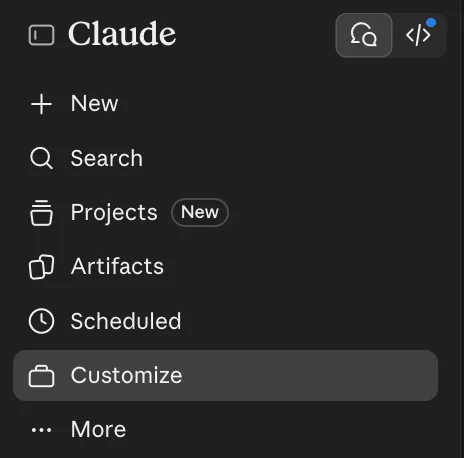
Open claude.ai and click "Customize" on the left.
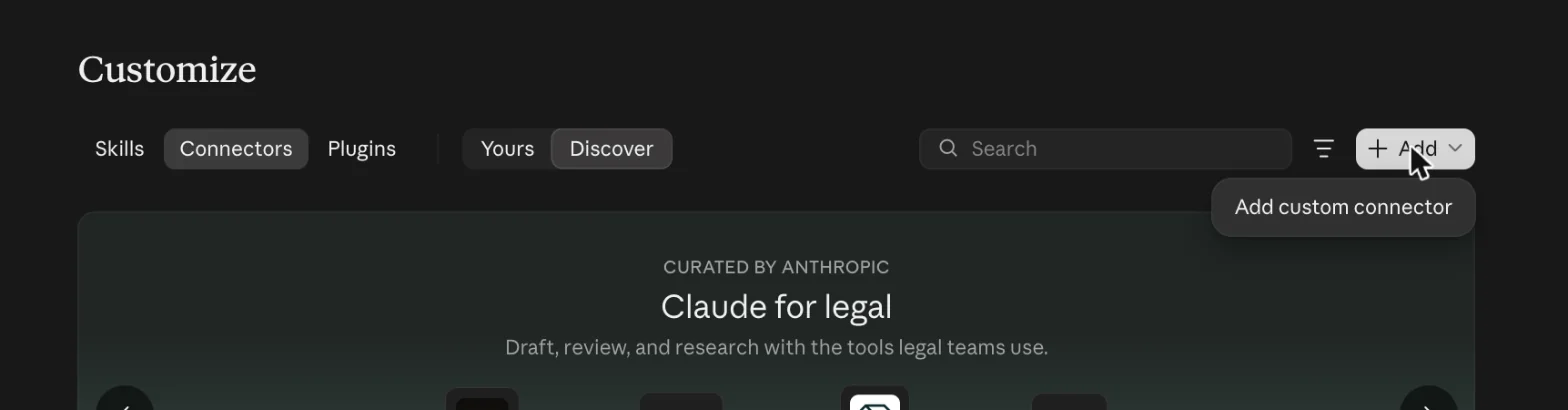
Choose "Connectors" at the top. Click "+ Add" on the right, then "Add custom connector".
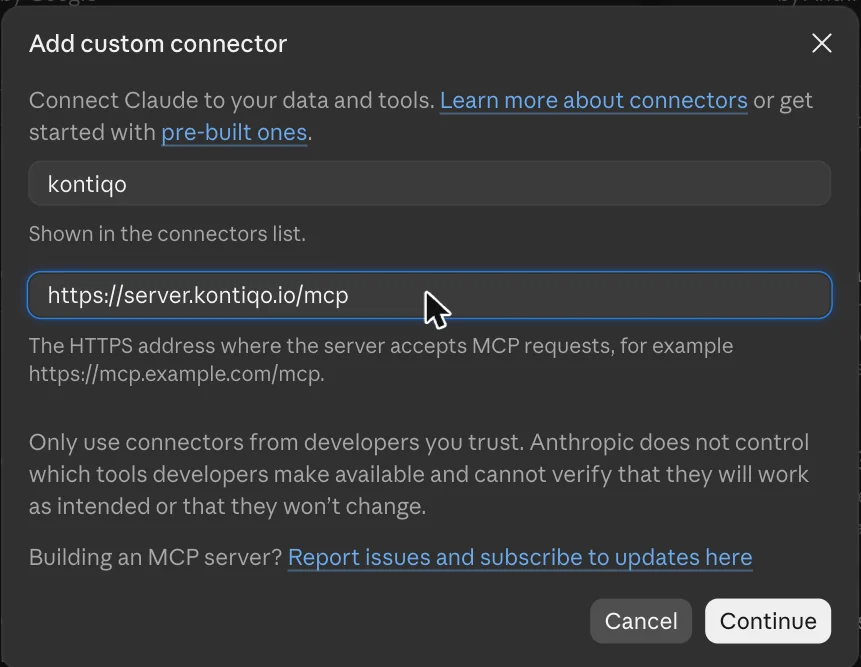
Enter kontiqo as the name, paste the address from above below it and click "Continue".
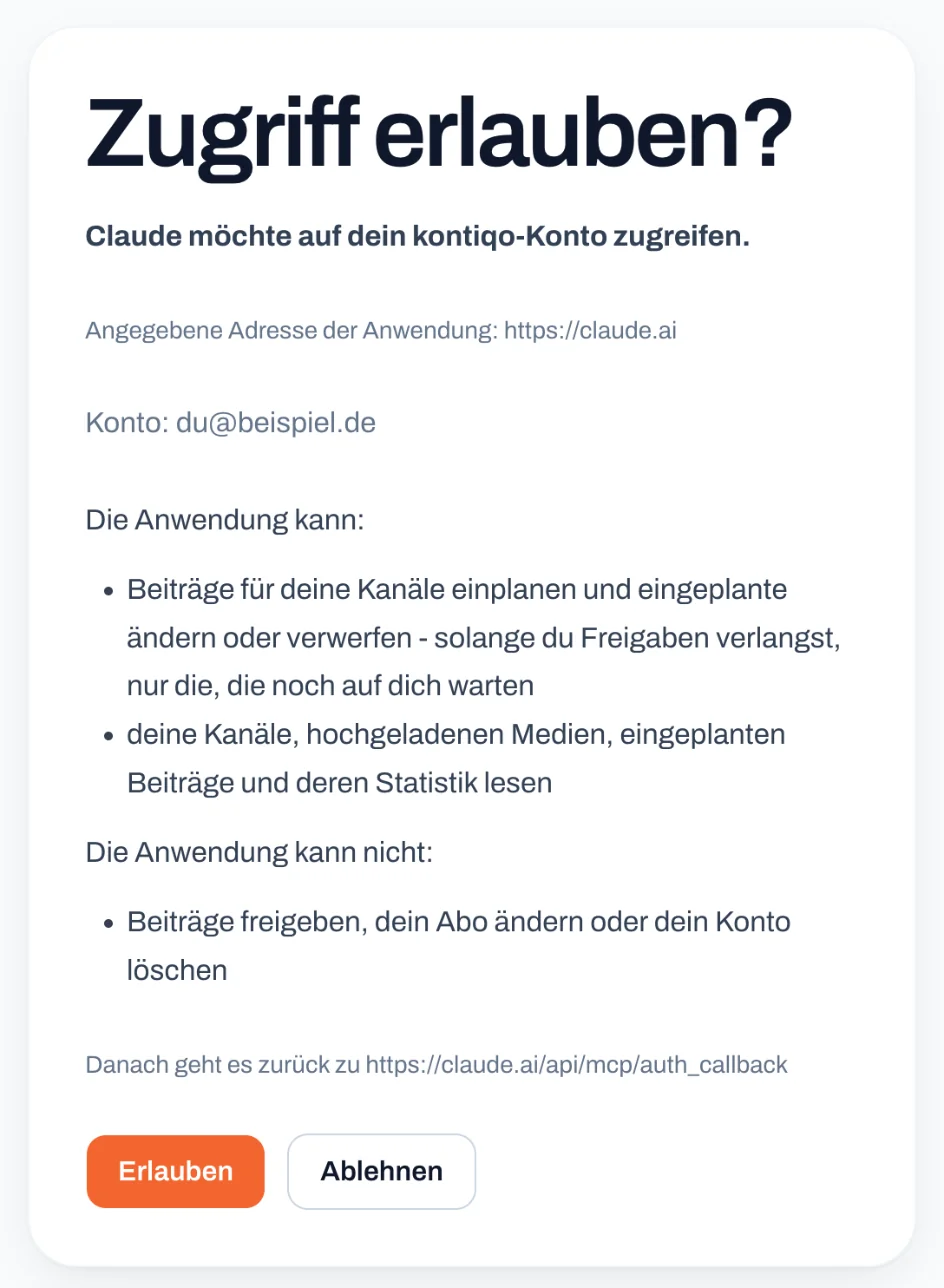
kontiqo opens. Sign in if needed, check what Claude may do and click "Allow".
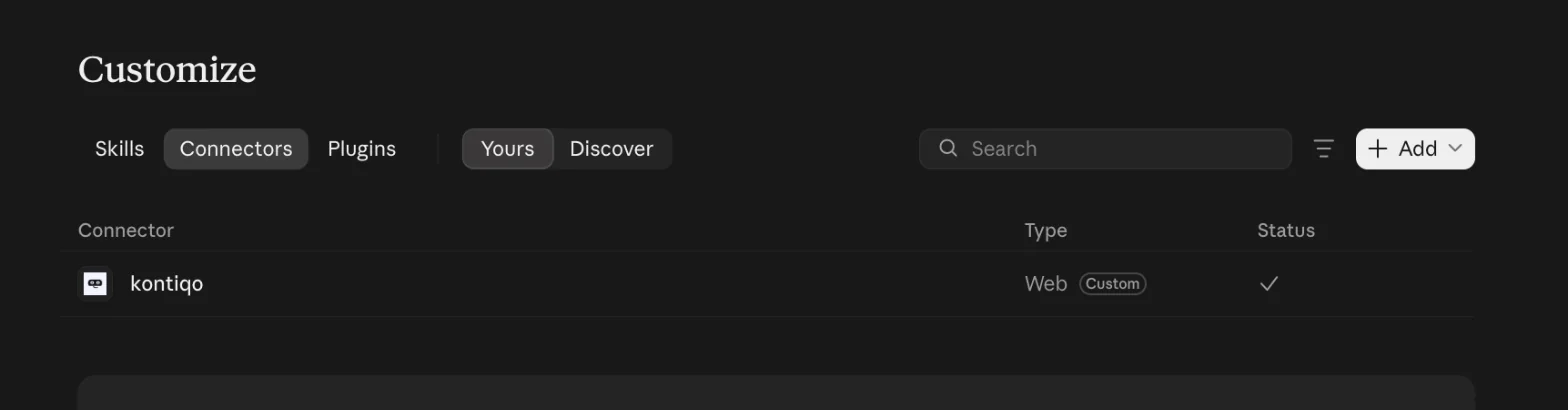
Done: kontiqo is listed under "Yours" with a tick.
Le Chat by Mistral
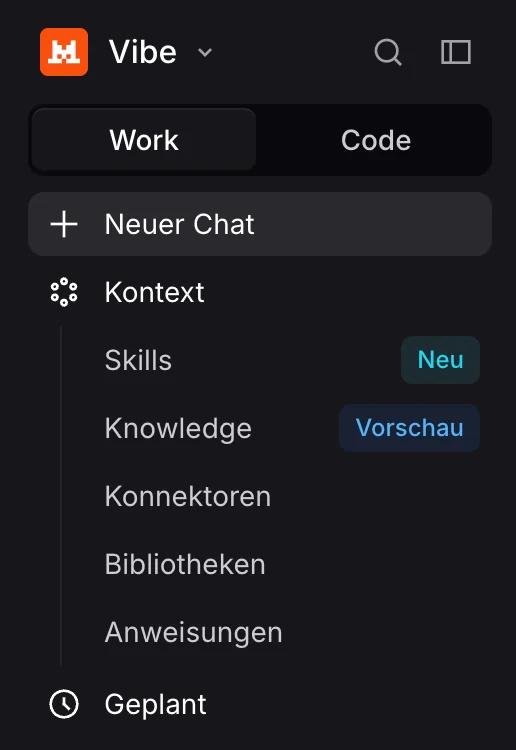
Works from the free plan. The pictures show Le Chat and the kontiqo page in German; the labels quoted below are the German ones, and the top left of Le Chat reads "Vibe".
Open chat.mistral.ai and click "Kontext" on the left, then "Konnektoren".
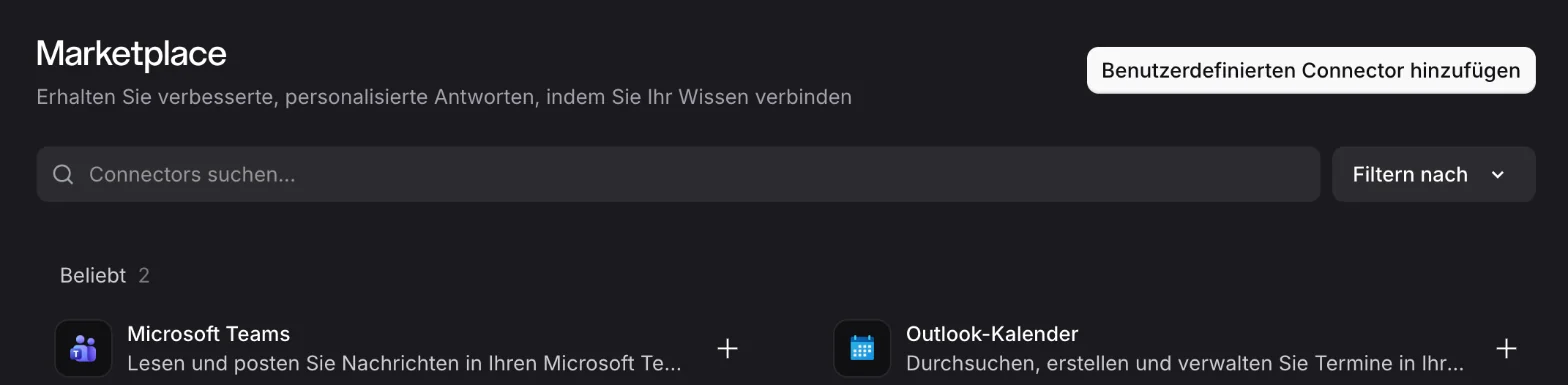
Click "+ Connector hinzufügen" at the top right, then "Benutzerdefinierten Connector hinzufügen".
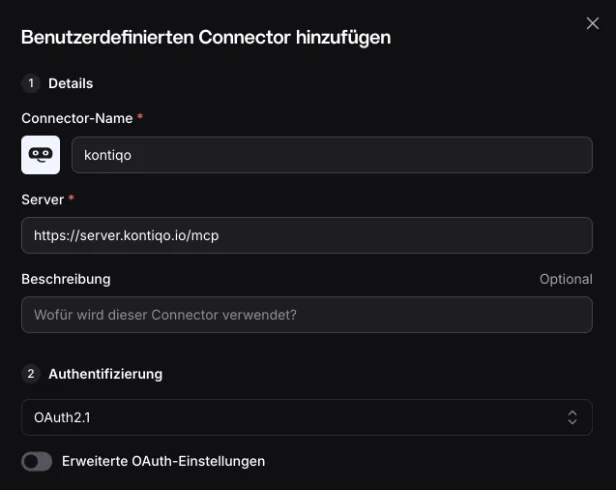
Enter kontiqo as the name and paste the address from above under "Server". Le Chat detects the sign-in (OAuth2.1) by itself. Click "Connector hinzufügen" at the bottom right.
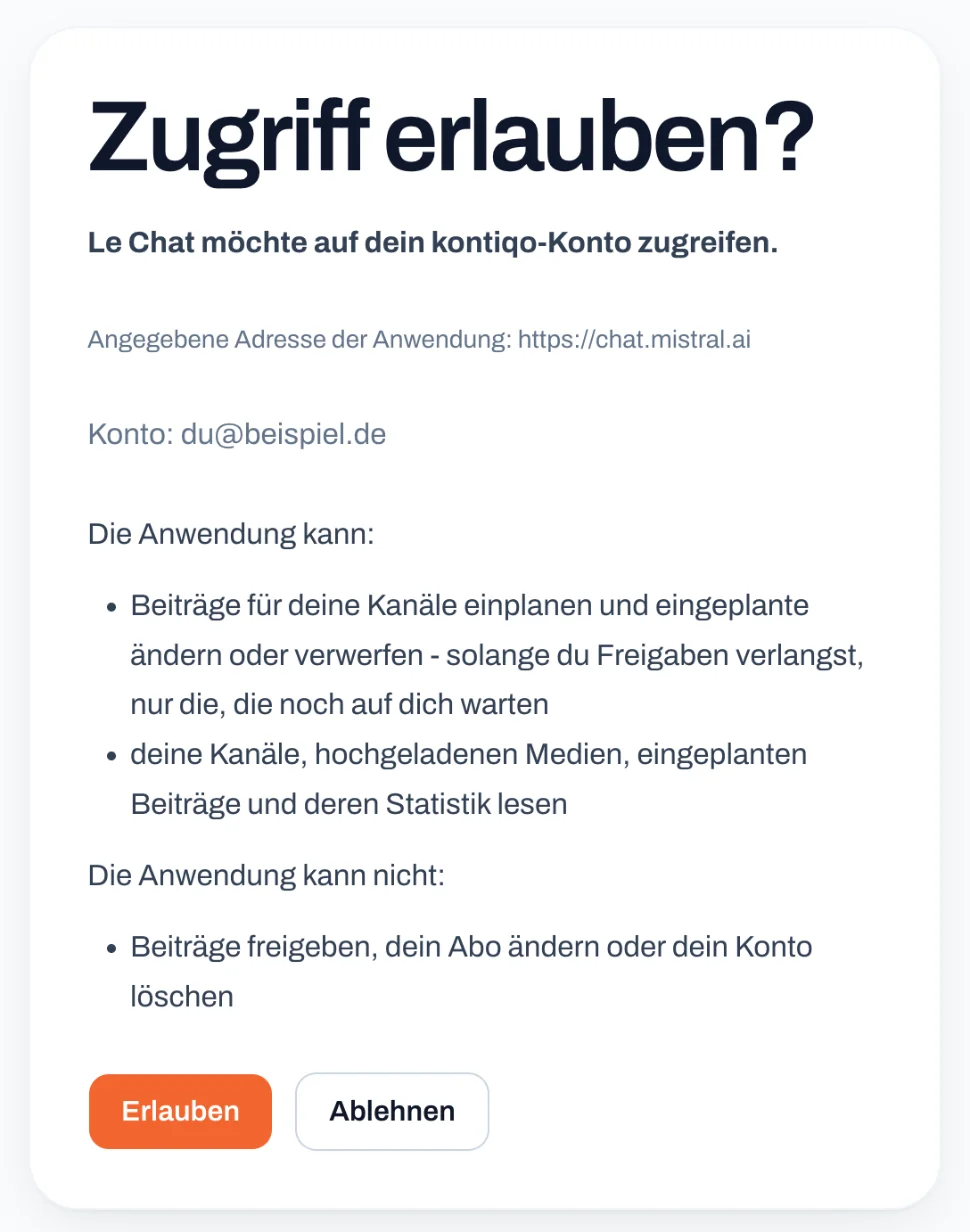
kontiqo opens. Sign in if needed, check what Le Chat may do and click "Allow".
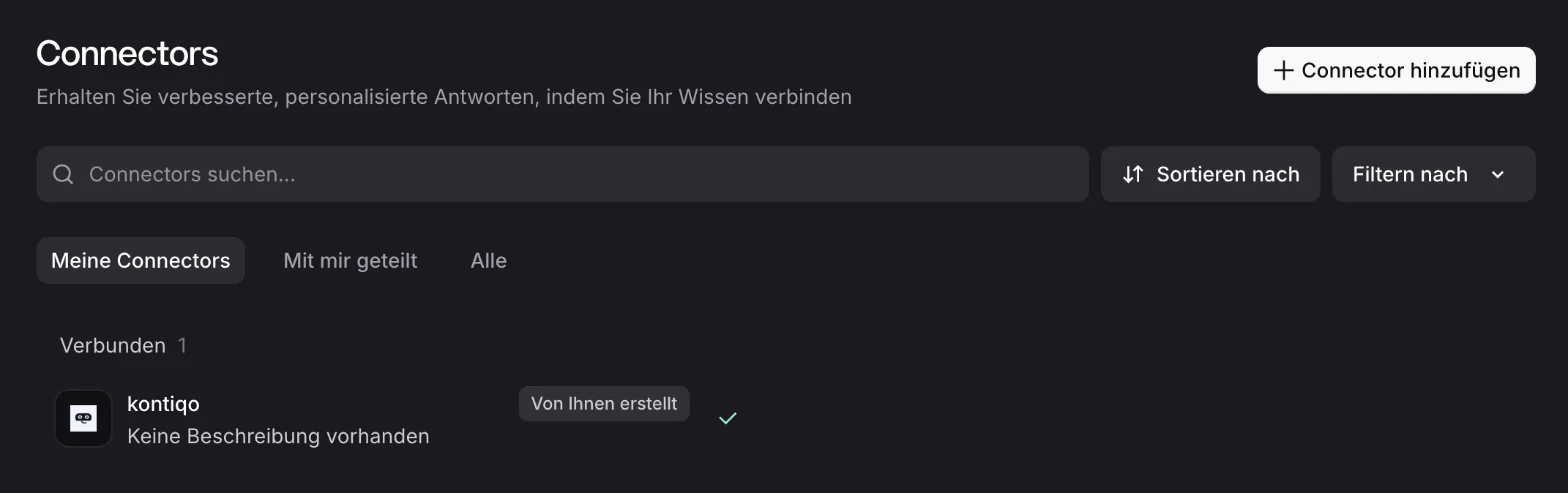
Done: kontiqo is listed under "Meine Connectors" as connected ("Verbunden").
Grok by xAI
Works from the free plan. The pictures show Grok and the kontiqo page in German; the labels quoted below are the German ones.
Open grok.com and click "Plugins" at the bottom left.
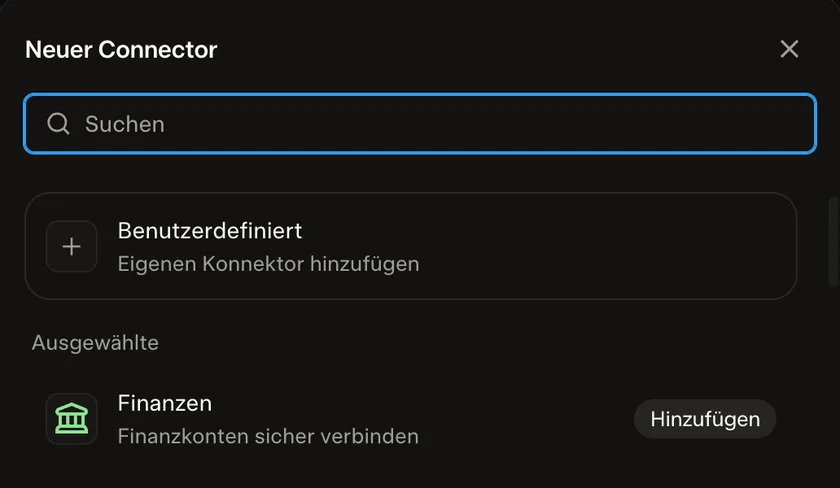
Click "Neuer Konnektor" (new connector) at the top right, then "Benutzerdefiniert" (custom).
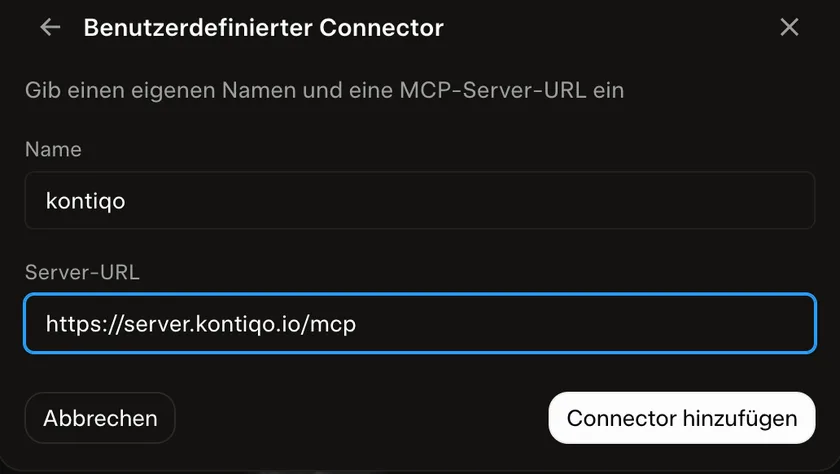
Enter kontiqo as the name, paste the address from above under "Server-URL" and click "Connector hinzufügen" (add connector).
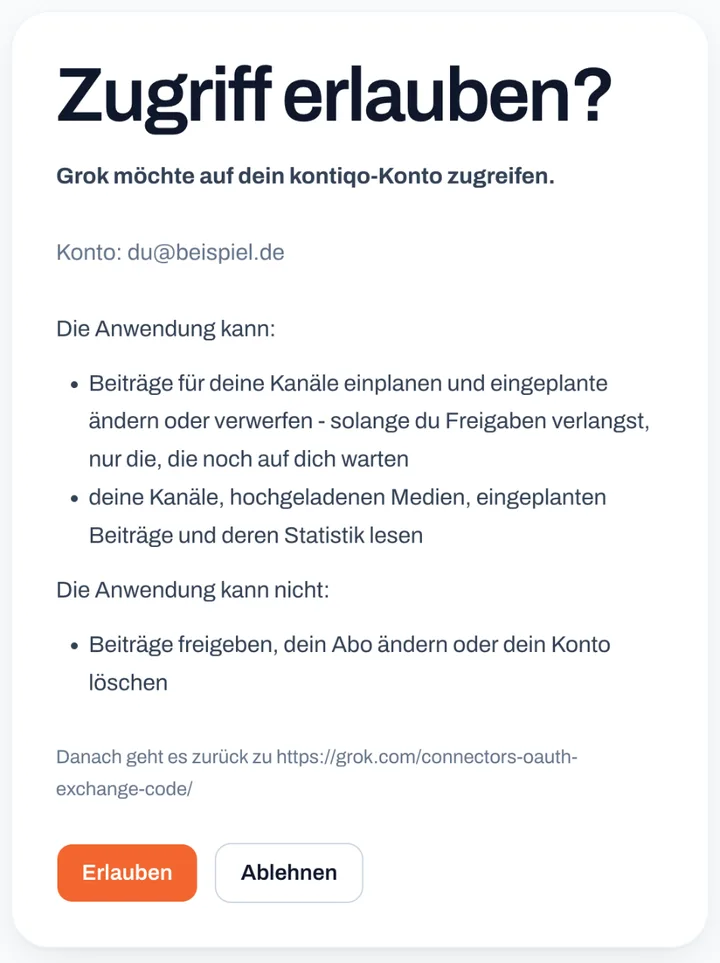
kontiqo opens in a window of its own. Sign in if needed, check what Grok may do and click "Allow".
Done: kontiqo is listed as connected ("Verbunden"). In a chat you switch it on or off under "+" and "Connectors".

Using kontiqo in the chat
Write what you need in a normal chat. For example:
- Which channels do I have in kontiqo?
- Write a LinkedIn post about our new offer and schedule it in kontiqo for Tuesday at 9 am.
- How did my posts in kontiqo do last month?
- If the AI asks whether it may use kontiqo, allow it.
- Whatever the AI schedules waits for your click under "Posts" as long as "Approval of AI posts" is set to "Approve in kontiqo only". That is the default; with "Also by the AI on my command" it approves when you explicitly tell it to.
- You can disconnect at any time: on the web under "Account" in "AI applications", in the app under "Settings" in "Connected AI apps".
Using Claude Desktop on your computer? It is even simpler: in the kontiqo app, click "Set up in Claude" under "Settings", "AI".
ChatGPT and other AI apps
ChatGPT can use kontiqo only with ChatGPT Business, Enterprise or Edu, set up by the person who manages your ChatGPT. Other AI apps with MCP and OAuth sign-in use the same address.